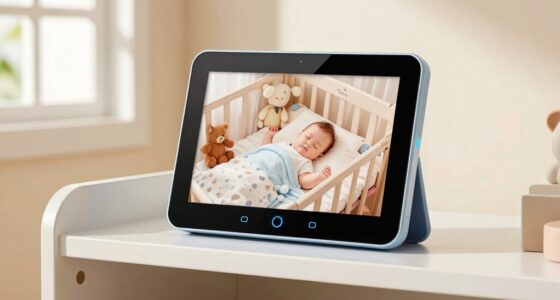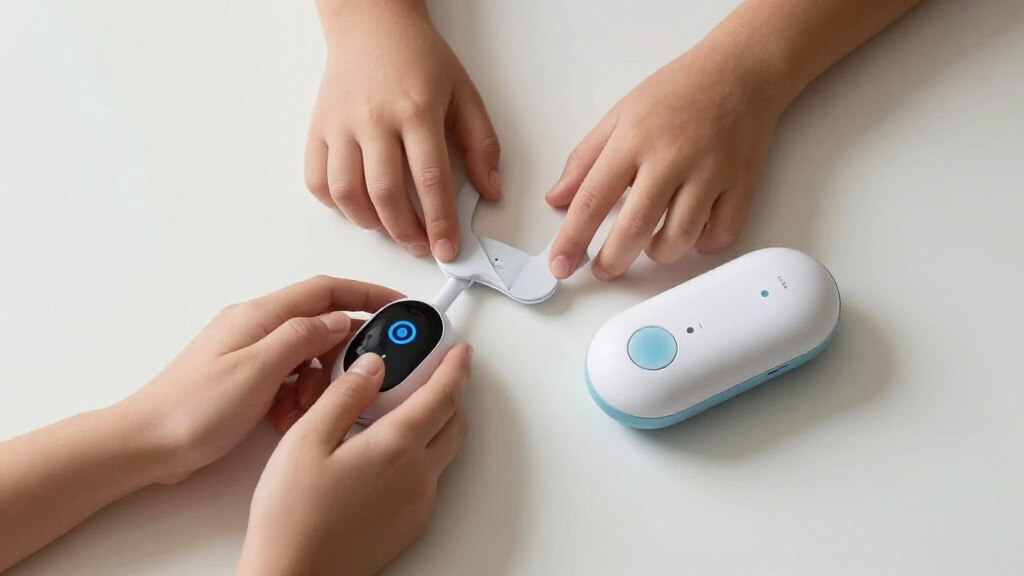

The best parental control devices depend on where your family needs boundaries: on a child’s phone, across your home Wi-Fi, or both. My best overall pick is the Bark A16 Phone, which brings parental controls and GPS tracking to a dedicated kid-and-teen phone. The Firewalla Purple SE stands out for network-level security, while the ASUS RT-AX1800S is a practical router choice for families seeking Wi-Fi controls. The main tradeoff is reach: a device can manage one child’s access or help protect connected devices across the household, but those are different jobs. Read on for the full comparison and guidance on matching each option to your family’s needs.

Turn the school run and nap time into listening time
- Thousands of audiobooks, podcasts and originals
- Listen on your phone, tablet or Echo — also offline
- Cancel anytime
Complete the kit


Key Takeaways
- Bark A16 is the clearest device-level pick: it combines a child-focused phone with GPS tracking and parental controls, unlike the routers and firewall, which manage network traffic rather than a phone as a whole.
- Firewalla Purple SE takes a different route: it focuses on protecting and managing a home network, so it suits families who want oversight beyond one child’s device.
- The ASUS RT-AX1800S and OLAX Scorpio X60 are router choices, not standalone child devices: their usefulness depends on whether their network controls match the family’s needs and existing setup.
- DBIT AX3000 Mesh Router addresses coverage as well as control: it may make more sense in a home with Wi-Fi dead zones than a single-router setup, though mesh coverage alone does not replace device-level limits.
- EmojiKidz smartwatch and EDUAITABLET tablet serve narrower needs: the watch centers on communication and location, while the tablet is a child-oriented screen; neither substitutes for household-wide network management.
| EmojiKidz 4G LTE Smartwatch for Kids with GPS, Video Calling, SOS, and Parental Controls |  | Best for Location Check-Ins | Connectivity: 4G LTE | Location: Built-in GPS with geofencing | Calling: Two-way voice and video calls | VIEW LATEST PRICE | See Our Full Breakdown |
| ASUS RT-AX1800S Dual-Band WiFi 6 Router |  | Best for Whole-Home Network Controls | Wi-Fi generation: WiFi 6 (802.11ax) | Frequency band: Dual-band | Maximum data rate: Up to 1800 Mbps | VIEW LATEST PRICE | See Our Full Breakdown |
| OLAX Scorpio X60 AC1200 Dual-Band WiFi Router |  | Best Value for Basic Router Controls | Wireless standard: WiFi 5 (802.11a/b/g/n/ac) | Wireless speed: Advertised up to 1200 Mbps; listed band speeds are 867 Mbps and 400 Mbps | Mesh support: EasyMesh | VIEW LATEST PRICE | See Our Full Breakdown |
| Bark A16 Phone for Kids and Teens with GPS Tracking and Parental Controls |  | Best for Social and Message Monitoring | Operating system: Android 14 | Memory and storage: 4 GB RAM; 128 GB storage | Display: 6.7-inch AMOLED, 1080 × 2400, 120 Hz | VIEW LATEST PRICE | See Our Full Breakdown |
| EDUAITABLET K10D 10.1-Inch Kids Android Tablet, Purple |  | Best for Younger Kids and Shared Screen-Time Rules | Operating system: Android 16 | Display: 10.1-inch IPS, 1280 × 800 | Processor: UNISOC T7200 octa-core, up to 2 GHz | VIEW LATEST PRICE | See Our Full Breakdown |
| DBIT AX3000 Wi-Fi 6 Mesh Router, 1-Pack |  | Best for Flexible Wi-Fi Coverage | Model: D-MAX6 | Wi-Fi generation: Wi-Fi 6 | Wireless standard: AX3000, dual-band | VIEW LATEST PRICE | See Our Full Breakdown |
| Firewalla Purple SE Cyber Security Firewall |  | Best for Network Security and Visibility | Model: Purple SE | IPS speed limit: 500 Mbps | RAM: 3 GB | VIEW LATEST PRICE | See Our Full Breakdown |
More Details on Our Top Picks
EmojiKidz 4G LTE Smartwatch for Kids with GPS, Video Calling, SOS, and Parental Controls
I’d choose the EmojiKidz 4G LTE smartwatch when a child needs a way to contact family and share their location without carrying a phone. GPS tracking, safe-zone alerts, and an SOS button give parents location and emergency-contact tools, while calling and messaging stay limited to approved contacts. Classroom Mode can cut down on interruptions during school hours. Compared with the Bark A16 Phone, this watch offers a simpler communication setup but not broad monitoring of texts and social apps. Its tradeoffs are the required subscription for connected features and conflicting water-resistance information: the description says IP67, while the specifications list 39 inches. I’d treat its water protection cautiously until clarified.
Pros:- GPS tracking and safe-zone alerts help parents check a child’s location.
- Voice and video calls and messaging are limited to approved contacts.
- SOS button can contact saved emergency contacts.
- Classroom Mode can reduce distractions during school hours.
Cons:- Connected features require a monthly subscription.
- Water-resistance information conflicts between the description and specifications.
- The watch offers fewer monitoring tools than a phone such as the Bark A16.
Best for: Families who want GPS check-ins and calls to approved contacts for a younger child who does not need a smartphone.
Not ideal for: Parents seeking social-media monitoring, or families unwilling to pay a recurring subscription for connected features.
- Connectivity:4G LTE
- Location:Built-in GPS with geofencing
- Calling:Two-way voice and video calls
- Safety features:SOS button, approved contacts, Classroom Mode
- Camera:5MP
- Water resistance:IP67 in description; conflicting 39-inch specification
- Compatibility:Android and iOS
- Subscription:Required for connected features
Our verdict“Choose this watch for GPS check-ins and controlled calls for a child who is not ready for a smartphone, provided the subscription and water-resistance uncertainty are acceptable.”
ASUS RT-AX1800S Dual-Band WiFi 6 Router
The ASUS RT-AX1800S is the strongest fit here for parents who want to manage internet access at the network level rather than monitor one child’s phone. Its AiProtection Classic security features and router-based controls can help families supervise connected devices, while WiFi 6, MU-MIMO, and OFDMA support efficient connections when several people are online. Four Gigabit LAN ports also give wired devices a direct connection. Compared with the OLAX Scorpio X60, this ASUS model uses newer WiFi 6 technology and adds Instant Guard VPN support; the OLAX instead lists WPA3 and EasyMesh. A router cannot provide the Bark A16’s social-app monitoring or location alerts, and its actual speed and coverage depend on the home and network setup.
Pros:- WiFi 6 with MU-MIMO and OFDMA supports multiple active devices.
- AiProtection Classic adds network security features.
- Four Gigabit LAN ports support wired connections.
- ASUS Instant Guard VPN and AiMesh support add networking options.
Cons:- Does not provide phone-style monitoring of messages or social apps.
- Real-world speed and coverage vary with the internet connection and home environment.
Best for: Families who want router-based oversight and security for many household devices, with wired ports for computers or consoles.
Not ideal for: Parents who need alerts about a child’s messages, social-media activity, or physical location rather than controls over network access.
- Wi-Fi generation:WiFi 6 (802.11ax)
- Frequency band:Dual-band
- Maximum data rate:Up to 1800 Mbps
- Ethernet ports:1 Gigabit WAN and 4 Gigabit LAN
- Antennas:4 external antennas
- Processor:Dual-core
- Security:AiProtection Classic; WPA-Enterprise, WPA2-Enterprise, WPS
- Additional networking:ASUS Instant Guard VPN and AiMesh support
Our verdict“Pick the ASUS when you want WiFi 6 network-level supervision for household devices, not direct monitoring of a child’s phone activity.”
OLAX Scorpio X60 AC1200 Dual-Band WiFi Router
The OLAX Scorpio X60 suits families who want basic parental controls built into a home router, plus room to expand coverage with EasyMesh. Its WPA3 security, guest network, and four Gigabit Ethernet ports cover useful everyday needs without requiring a separate phone or wearable for network-level supervision. Compared with the ASUS RT-AX1800S, it uses WiFi 5 rather than WiFi 6, so I’d favor the ASUS for a household prioritizing newer wireless technology and its listed VPN feature. The OLAX’s listed 2500-square-foot coverage and four fixed antennas may appeal to larger homes, though real coverage can vary. One spec detail is unclear: its 867 Mbps and 400 Mbps band figures total 1267 Mbps, while the product is labeled AC1200.
Pros:- Includes parental controls for network-level supervision.
- EasyMesh support can help extend coverage with compatible equipment.
- WPA3 security and a guest network support safer household access.
- Four Gigabit Ethernet ports support wired devices.
Cons:- WiFi 5 is an older wireless generation than the ASUS RT-AX1800S’s WiFi 6.
- Advertised AC1200 rating conflicts with the listed band speeds totaling 1267 Mbps.
- Router controls do not replace monitoring of messages or social apps.
Best for: Families seeking a dual-band router with parental controls, WPA3, and mesh expansion support for a home network.
Not ideal for: Households prioritizing WiFi 6, or parents who need detailed alerts about messages, apps, or a child’s location.
- Wireless standard:WiFi 5 (802.11a/b/g/n/ac)
- Wireless speed:Advertised up to 1200 Mbps; listed band speeds are 867 Mbps and 400 Mbps
- Mesh support:EasyMesh
- Security:WPA3, WPA, WPA2
- Antennas:4 fixed antennas, 6 dBi
- Ethernet ports:4 Gigabit ports
- Listed maximum coverage:2500 square feet
- Features:Parental controls, MU-MIMO, smart roaming, guest network
Our verdict“Choose the OLAX for a feature-rich WiFi 5 router with parental controls and EasyMesh, but favor the ASUS if WiFi 6 is a priority.”
Bark A16 Phone for Kids and Teens with GPS Tracking and Parental Controls
For parents whose main concern is what a child encounters on a smartphone, the Bark A16 offers a broader set of tools than the EmojiKidz watch or either router. It monitors texts, emails, and activity across 30-plus social platforms and apps for potential safety concerns, alongside app and contact controls, web filtering, internet pausing, and real-time GPS alerts. That combination makes it better suited to teens who already need a phone than to younger children who only need simple check-ins. Its 128 GB storage and large AMOLED screen also make it a full Android device, not just a monitoring accessory. The tradeoff is ongoing cost: a monthly data plan is required. Unlike the ASUS RT-AX1800S, Bark focuses on an individual phone rather than household-wide network management.
Pros:- Monitors texts, emails, and activity across 30-plus social platforms and apps.
- Parents can manage apps, contacts, websites, and internet access.
- Real-time GPS, location alerts, and check-ins support location supervision.
- Texts cannot be deleted without parental permission.
Cons:- A monthly data plan is required after purchase.
- It is a full-size smartphone, which may provide more access than younger children need.
- It has no headphone jack.
Best for: Parents of teens who need a smartphone but also want monitoring of messages and social apps, web filtering, and location alerts.
Not ideal for: Families wanting a low-commitment device, household-wide router controls, or a simple first communication device for a young child.
- Operating system:Android 14
- Memory and storage:4 GB RAM; 128 GB storage
- Display:6.7-inch AMOLED, 1080 × 2400, 120 Hz
- Cellular connectivity:Unlocked 4G LTE, single Nano SIM
- Monitoring:Texts, emails, and activity across 30-plus social platforms and apps
- Location features:Real-time GPS tracking, alerts, and check-ins
- Battery:5000 mAh
- Monthly plan:Data plan required
Our verdict“Choose the Bark A16 for a teen who needs a smartphone with broad activity monitoring and GPS, while accepting an ongoing data-plan commitment.”
EDUAITABLET K10D 10.1-Inch Kids Android Tablet, Purple
The EDUAITABLET K10D is the most age-appropriate pick here for younger children who use a tablet for games, videos, and learning rather than independent messaging. Google Kids Space supports profile, content, and screen-time management, while the included EVA case and foldable stand make the tablet easier to handle at home. Compared with the Bark A16, it avoids putting a child on a cellular smartphone; compared with the EmojiKidz watch, it does not provide GPS or emergency calling. Its expandable storage can help when families download content, but the built-in 32 GB is limited before expansion. I’d also set expectations around the 1280 × 800 display: this is a basic viewing screen, not a high-resolution option for families who prioritize sharp detail.
Pros:- Google Kids Space provides profile, screen-time, and content controls.
- Included EVA case and foldable stand support supervised everyday use.
- Storage can be expanded up to 1 TB.
- Blue light reduction mode and adjustable brightness offer display settings for different environments.
Cons:- The 1280 × 800 display has modest resolution for a 10.1-inch screen.
- Base storage is 32 GB, so families may need expandable storage for downloads.
- It lacks the GPS and calling tools offered by the EmojiKidz watch.
Best for: Families with younger children who want a shared or supervised Android tablet with screen-time and content controls.
Not ideal for: Parents who need GPS tracking, calls, or monitoring across a child’s phone and social accounts.
- Operating system:Android 16
- Display:10.1-inch IPS, 1280 × 800
- Processor:UNISOC T7200 octa-core, up to 2 GHz
- RAM:16 GB as listed
- Storage:32 GB, expandable up to 1 TB
- Battery:6000 mAh
- Connectivity:Dual-band Wi-Fi and Bluetooth 5.4
- Included accessories:Purple EVA case, foldable stand, USB-C cable, user manual
Our verdict“Pick the K10D for supervised home screen time with younger children, but choose a phone or smartwatch if location and communication tools are needed.”
DBIT AX3000 Wi-Fi 6 Mesh Router, 1-Pack
The DBIT AX3000 makes the most sense for families who want router-based parental controls alongside broad home Wi-Fi, without committing to a dedicated security appliance. It can run as a standalone router or join a mesh setup, giving it more placement flexibility than the ASUS RT-AX1800S, which is listed as a conventional Wi-Fi 6 router. Its app-based controls and guest mode can help parents manage access across connected devices, while WPA3 adds a newer security option. The advertised coverage and device capacity suit a busy household, though actual results depend on the home layout and network. Unlike the Firewalla Purple SE, this is not presented as a specialist firewall with detailed network analysis; choose it for everyday Wi-Fi and basic parental controls, not deeper security oversight.
Pros:- Works as a standalone router or an add-on mesh node
- Advertised coverage up to 2,500 square feet and support for up to 150 devices
- App-based parental controls and guest mode
- Two Gigabit Ethernet ports and WPA3 security support
Cons:- Actual coverage and performance can vary with the home layout and network setup
- The listed features do not describe the depth or scheduling options of its parental controls
- Provides less specialized security visibility than the Firewalla Purple SE
Best for: Families replacing a router or adding mesh coverage who want app-based parental controls for many connected devices.
Not ideal for: Parents seeking detailed network threat monitoring, advanced traffic analysis, or a dedicated firewall; the Firewalla Purple SE is more specifically built for that role.
- Model:D-MAX6
- Wi-Fi generation:Wi-Fi 6
- Wireless standard:AX3000, dual-band
- Maximum data transfer rate:Up to 3,000 Mbps
- Frequency bands:2.4 GHz and 5 GHz
- Coverage:Up to 2,500 sq. ft.
- Supported devices:Up to 150
- Ethernet ports:2 Gigabit
- Security:WPA-PSK, WPA2-PSK, WPA3-SAE
Our verdict“Choose the DBIT AX3000 if you want a flexible Wi-Fi 6 router with parental controls, rather than a dedicated network-security device.”
Firewalla Purple SE Cyber Security Firewall
The Firewalla Purple SE is the strongest fit here for parents who want network protection and visibility as well as parental controls. Its listed IDS/IPS, ad blocking, and bandwidth analysis go beyond the everyday router controls offered by the DBIT AX3000, making it better suited to families who want to monitor and manage activity across a whole network. It can work as a router or a transparent bridge, so it may fit an existing setup without replacing every component. That flexibility comes with limits: IPS is capped at 500 Mbps, setup and management require the app, and router mode may call for extra modem or Wi-Fi hardware. Its single 100 Mbps LAN port also makes it a less straightforward choice for households prioritizing fast wired connections.
Pros:- Combines parental controls with IDS/IPS and ad blocking
- Can operate as a router or transparent bridge
- App provides network visibility and bandwidth analysis
- No monthly subscription fees for the listed security features
Cons:- IPS functionality is limited to 500 Mbps
- Initial setup and management require the Firewalla App
- Router mode may require additional modem or Wi-Fi hardware, and the listed LAN port is limited to 100 Mbps
Best for: Security-conscious households that want network-wide parental controls, ad blocking, and app-based visibility into traffic.
Not ideal for: Families with internet service above the 500 Mbps IPS limit, those who want simple router setup, or homes relying on multiple fast wired connections.
- Model:Purple SE
- IPS speed limit:500 Mbps
- RAM:3 GB
- Operating system:Linux
- Connectivity:Ethernet, Wi-Fi 5 (802.11ac)
- Security protocol:WPA2-PSK
- Control method:Firewalla App
- Ports:1 LAN port (100 Mbps)
Our verdict“Pick the Firewalla Purple SE for network-wide security tools and activity visibility, provided its speed and setup limits fit your home.”

How We Picked
I ranked these options by how directly they help parents manage children’s digital access, how clearly their role fits a family need, and how much setup or ongoing oversight they imply. I also weighed the difference between device-level controls, which follow a phone or tablet, and network-level tools, which act on connected devices at home. A smartwatch can support contact and location needs, but it cannot take the place of broader screen or network management; a router or firewall has the opposite limitation.
The ranking favors options with a clear parental-control purpose and a useful balance of coverage, usability, and flexibility. The Bark A16 ranks first for combining a dedicated child phone with tracking and controls. The Firewalla Purple SE and routers follow for families prioritizing home-network oversight, with the DBIT mesh option distinguished by its coverage role. The watch and tablet are included for families with more specific needs, but their narrower scope keeps them below picks that address a broader control problem. Before choosing, check the exact control features, service requirements, and compatibility offered by each model.
Factors to Consider When Choosing Best Parental Control Devices
Parental control devices do not all control the same thing. I would start by identifying whether the main concern is a child’s communication device, household Wi-Fi access, or a mix of both. These broader factors help prevent a common mismatch: buying a capable device that cannot manage the behavior or equipment you actually want to address.
Decide Where Controls Need to Apply
Start with the point where you need a boundary: an individual phone, a tablet, or the home network. A child’s phone may need rules that remain relevant away from home, while a router or firewall mainly operates on traffic connected through the household network. Families often assume that Wi-Fi controls will also manage cellular data or activity on another network; that may not be true. If your child uses devices both at home and elsewhere, pair the control approach with the places and connections that matter. A network tool can cover several household devices, but it does not automatically provide the same oversight as a control installed or built into each device. Choose scope before comparing feature lists.
Match the Device to the Child’s Age and Routine
Children who need a way to contact caregivers may benefit more from a connected watch than from a full tablet or phone. Older children who need broader communication may require a phone, along with clear family rules about use and supervision. A tablet can be a suitable shared or entertainment device, but it may add another screen to manage rather than reducing existing concerns. Consider when the child uses the device, whether it travels with them, and who will set and review its rules. A common mistake is buying based on age labels alone without checking whether the device’s communication and control functions fit daily routines. The right form factor can matter as much as the control software.
Check What Controls Actually Cover
Parental control is a broad label, not a guarantee that every feature you want is included. Before buying, check whether the product supports the limits, monitoring, location, or access management relevant to your household. Also distinguish between a device that reports location and one that manages online access; those functions solve separate problems. Network controls may affect connected equipment, while device-specific tools may be better suited to a child’s individual phone use. Look for clear information about supported devices, settings, and any service or account needed to use the controls. Avoid paying for a feature category that sounds reassuring if it does not address your main concern.
Account for Coverage and Home Layout
Network control is only useful where the network reaches and where devices connect to it. In a home with weak Wi-Fi in certain rooms, a mesh setup may be more relevant than upgrading to a faster single router. A firewall or router cannot solve poor coverage simply by offering more security tools, and a mesh system does not automatically provide richer parental controls. Check your home’s size, layout, number of floors, and existing networking equipment before choosing. Families with stable coverage may prefer a straightforward router or network security device rather than adding mesh hardware. Separate the coverage problem from the control problem so you do not expect one purchase to fix both.
Plan for Setup, Updates, and Ongoing Oversight
Every control system asks for some parent involvement, whether that means configuring a router, managing a child’s device, or reviewing settings over time. Consider who will handle setup and whether that person is comfortable managing network equipment or prefers controls tied to a familiar device. Ask what accounts, apps, subscriptions, or connectivity services are needed, and confirm those details with the product information before purchase. A feature-rich setup can become less useful if nobody has time to maintain it. Families may also need to revisit limits as a child’s age, school needs, or routines change. Choose a manageable system rather than assuming the device will replace conversations and household rules.
Balance Household Coverage Against Individual Control
A router or firewall can be a sensible way to manage the home connection, especially when several devices share it. It may not provide the same child-specific controls or portability as a phone or tablet designed for an individual user. Conversely, managing a single child’s device may leave other connected screens outside the same set of boundaries. Some families will get the clearest result from combining network-level safeguards with age-appropriate device rules, but buying both is not necessary for every household. First list the devices and situations that create the greatest concern, then decide whether one layer is enough. The best fit is the smallest setup that covers those needs without creating unnecessary work.
Frequently Asked Questions
Should I choose a parental-control phone or a router?
Choose a phone when your main need is managing one child’s personal device, especially when it travels outside the home. Choose a router when the priority is managing access for devices connected to your household Wi-Fi. A router may not cover cellular data or use on other networks, while a phone does not automatically manage every screen in the home. If both situations matter, think of these as separate layers rather than interchangeable products. Confirm the exact controls and connection limits for the model before deciding.
Can a router control my child’s phone when they are away from home?
A home router generally manages devices while they are using that network; it should not be assumed to control a phone over cellular data or another Wi-Fi connection. That makes router-based controls useful for household boundaries but potentially incomplete for a child who uses a phone elsewhere. Check whether the specific product offers any management beyond the home network, rather than relying on the general term parental controls. If off-home use is a major concern, prioritize device-level controls or a dedicated child phone. Family rules still matter when no home network tool is in the path.
Is a kids’ smartwatch enough if I do not want to give my child a phone?
A smartwatch can suit a child who mainly needs a way to contact caregivers or share location, without receiving a full phone. It is not a direct substitute for broader phone or household internet management. Before choosing one, check its communication options, service requirements, supported contacts, and the controls available to parents. Consider whether the child’s daily routine calls for independent messaging or access to apps and web services; those needs may point to a different device. The EmojiKidz watch in this roundup is best viewed as a narrower communication and location option.
Do I need mesh Wi-Fi for parental controls?
No. Mesh Wi-Fi is mainly relevant when a home needs broader or more consistent wireless coverage; mesh hardware by itself does not guarantee stronger parental controls. A single router may be enough if coverage is already reliable and its available management features fit your needs. The DBIT AX3000 is worth considering when coverage is part of the problem, while the ASUS and OLAX models are conventional router options in this lineup. Compare control capabilities separately from coverage claims, and check how a mesh unit works with your existing network before buying.
Can one parental control device manage every screen in my home?
Not necessarily. A network product can manage devices connected through the home network, while a phone, watch, or tablet is centered on the device itself. Off-network use, cellular connections, unsupported equipment, and differences in product controls can leave gaps. Make an inventory of the child’s devices and note where each is used before selecting a solution. For some families, a home-network tool is enough; others may need device-level controls as well. Check product-specific compatibility and service details rather than assuming one device covers every screen.
Conclusion
For the broadest child-specific fit in this lineup, I would start with the Bark A16 Phone: it combines a dedicated kid-and-teen phone with GPS tracking and parental controls. Families focused on home-network security should look first at the Firewalla Purple SE, while the ASUS RT-AX1800S is my more straightforward router pick. For a household seeking added coverage alongside network controls, the DBIT AX3000 Mesh Router has the clearest specific role; the OLAX Scorpio X60 is another router option to compare against the family’s network needs. The EmojiKidz smartwatch is the best fit for communication and location without a full phone, and the EDUAITABLET suits families seeking a child-oriented tablet, not network-wide oversight. My best-value choice is the ASUS for families who need a conventional router rather than a dedicated phone or security appliance, and my beginner-friendly pick is the Bark A16 for parents who want a child-focused device instead of configuring household network controls. Choose by the problem you need to solve first; these products are not interchangeable.